
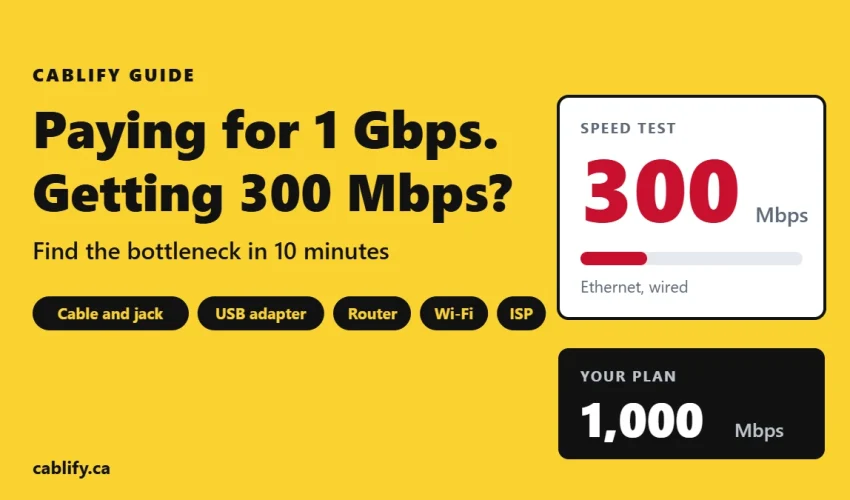
On a 1 Gbps plan, a computer plugged in with a cable should test at about 900 to 940 Mbps. If yours shows 200 or 300 Mbps, something between the internet box and your computer is holding it back. The number you see usually tells you what.
What your speed test number means
Different bottlenecks stop at different speeds. Find your number:
A damaged or old cable, a broken pair, a 10/100 port or a bad wall jack.
First check: the link speed on your computer.
A USB 2.0 adapter or dock, a router with QoS or traffic analysis on, PPPoE through your own router, or a VPN.
First check: plug a computer with a built-in port straight into the ISP box.
Testing over Wi-Fi, a mid-range router or mesh node, or a busy network.
First check: run the same test on a cable.
A browser test on an older laptop, background traffic, security software or a distant test server.
First check: use the speed test app with sync and VPN paused.
About 940 Mbps is the real top speed of a 1 Gbps connection. Nothing to fix.
Find your bottleneck
Answer a few quick questions and get the most likely causes for your setup, with what to do about each.
The slowest part sets your speed
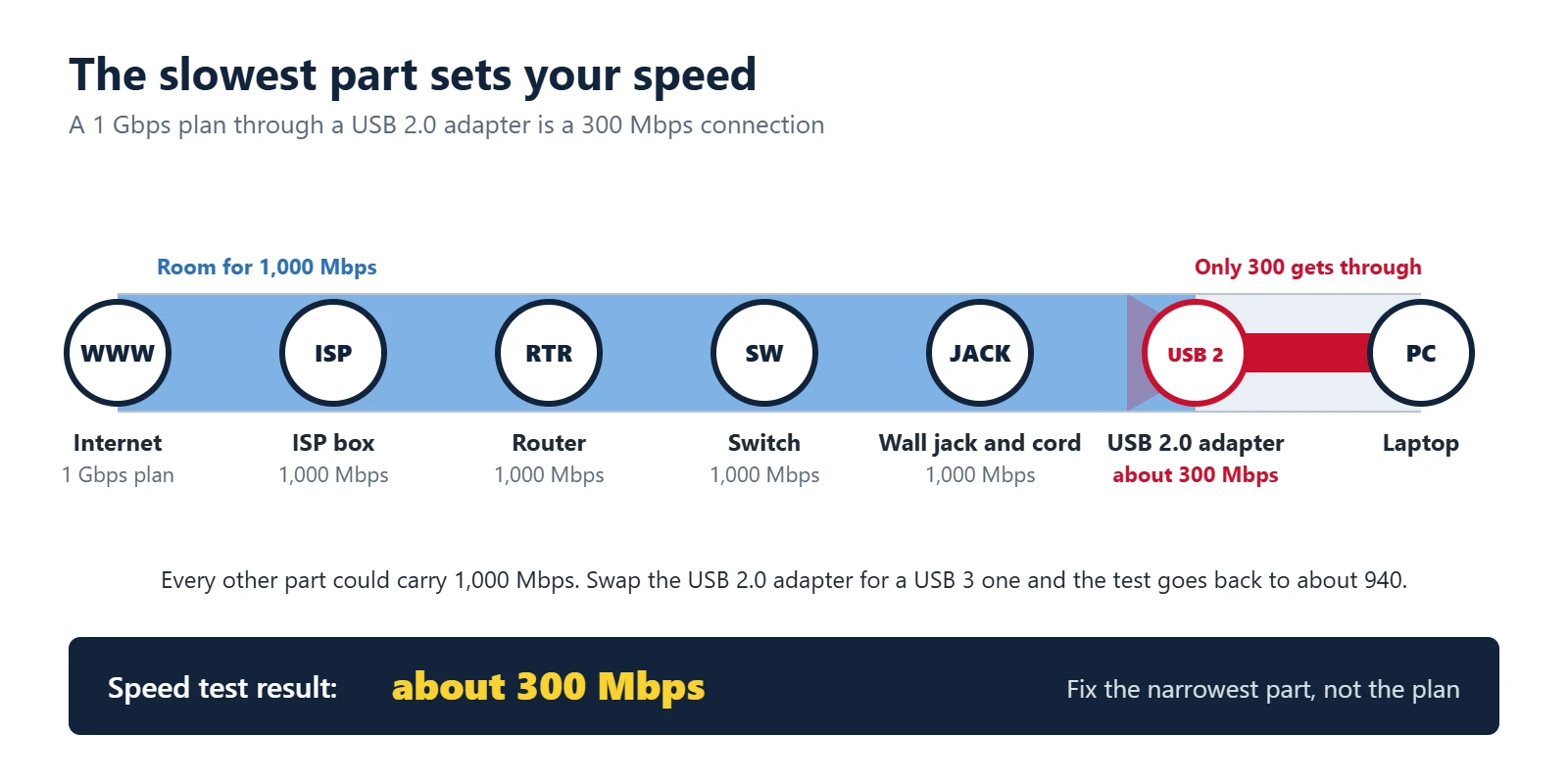
Your connection runs through several pieces of equipment: the ISP box, your router, any switches, the wall jack and patch cords, and finally the network port or adapter in your computer. Data can only move as fast as the slowest of them. A 1 Gbps plan with a 300 Mbps USB adapter at the end is a 300 Mbps connection.
Why 940 Mbps is the real top speed
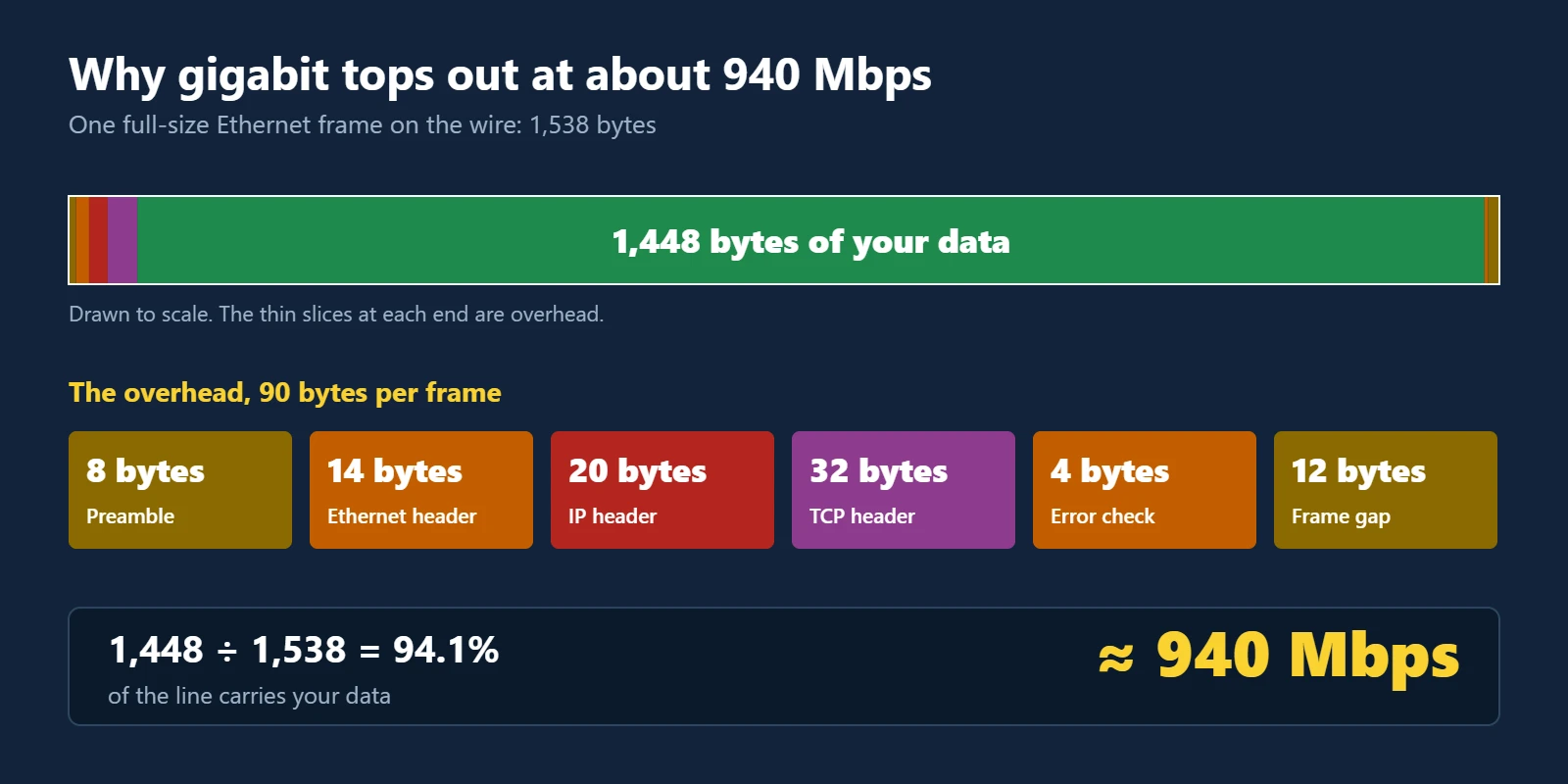
A gigabit link moves 1,000 Mbps of raw bits, but not all of them are your data. Each Ethernet frame on the wire is 1,538 bytes. The preamble, the Ethernet, IP and TCP headers, the error check and the required gap between frames take up 90 of those bytes, which leaves 1,448 bytes of actual data. That is about 94%, or roughly 940 Mbps.
So a test result of 920 to 940 Mbps is a perfect gigabit connection. Nobody gets 1,000.
Step 1: check your link speed
The link speed is what your computer and the device at the other end of the cable agreed on. It takes ten seconds to check and it rules out half the possible causes.
Windows 11
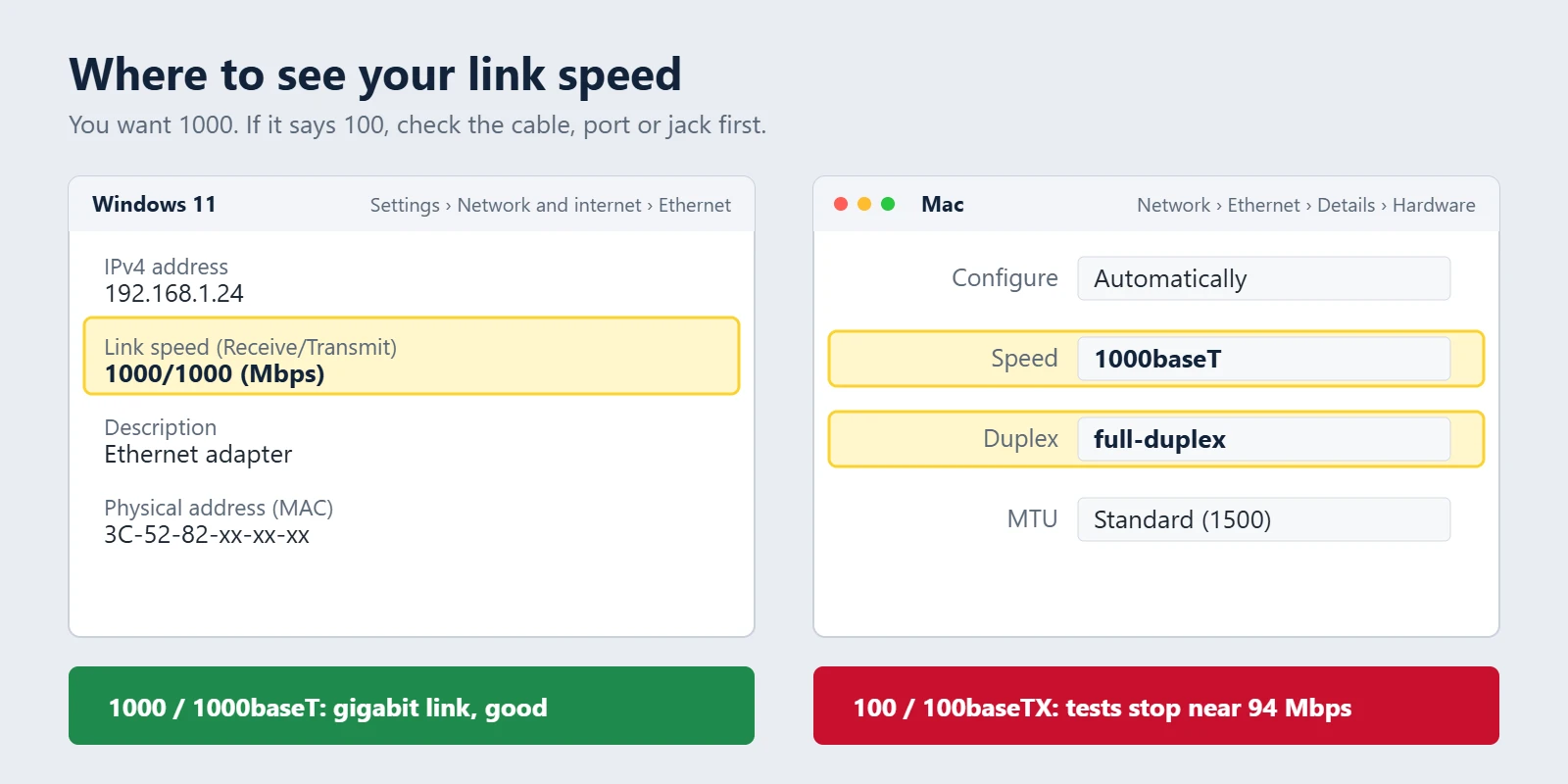
Settings, then Network and internet, then Ethernet. Look for Link speed (Receive/Transmit). You want 1000/1000 (Mbps).
Windows 10
Control Panel, Network and Sharing Center, Change adapter settings. Double-click your Ethernet adapter and read Speed. You want 1.0 Gbps.
Mac
System Settings, Network, Ethernet, Details, then Hardware. Or type ifconfig en0 | grep media in Terminal (an adapter may be en1 or higher). You want 1000baseT and full-duplex.
Linux
Run ethtool eth0 (use your adapter’s name). You want Speed: 1000Mb/s and Duplex: Full.
What “1.0 Gbps full duplex” means
You may see “1.0 Gbps Full Duplex” in Windows, either as the link status or as an option under the adapter’s Speed and Duplex setting in Device Manager. Full duplex means the link sends and receives at the same time. 1.0 Gbps full duplex is exactly what a healthy gigabit link should report.
Don’t force it. Leave Speed and Duplex on Auto Negotiation. Gigabit Ethernet over copper cable is designed to use auto-negotiation, and forcing a value on one end can stop the link from coming up or cause a duplex mismatch that makes it slower. If auto-negotiation only reaches 100 Mbps, the cause is physical, and a setting won’t fix it.
The causes, most common first
1. A cable, jack or port running at 100 Mbps
Tests stop at about 94 MbpsLink speed shows 100 MbpsGigabit Ethernet uses all four pairs of wires in the cable. Older 100 Mbps Ethernet only needs two. When one of the other two pairs is broken, crushed or not connected, many network cards quietly drop back to 100 Mbps so they keep working.
- Damaged or cheap patch cords, especially thin flat ones that have been stepped on or pinched in a door.
- Wall jacks or patch panels terminated with only two pairs, or with the pairs split, which can pass a basic continuity test and still fail at gigabit.
- Old Cat5 or telephone-grade cable in the walls.
- A 10/100 port on an older switch, router or wall-mounted device.
Swap in a factory-made Cat5e or Cat6 patch cord, try another port, and check the link speed again. This fixes a surprising number of cases.
2. A USB adapter or dock
Tests stop at 250 to 350 MbpsLaptop without a built-in portUSB 2.0 runs at 480 Mbps on paper, and a gigabit Ethernet adapter on USB 2.0 reaches about 250 to 300 Mbps in practice. That lines up almost exactly with the most common complaint: “1 Gbps plan, 300 Mbps result.”
- A USB 2.0 adapter, or a USB 3 adapter plugged into a USB 2.0 port.
- Some low-cost USB-C hubs use a USB 2.0 network chip even though the plug is USB-C.
- Docks shared with displays and drives can also run short on bandwidth.
Use a USB 3 gigabit or 2.5G adapter in a USB 3 port (often blue or marked SS), and test once with a computer that has a built-in Ethernet port to confirm.
3. Router features and an underpowered router
200 to 600 MbpsFast when plugged into the ISP boxRouters handle gigabit by passing traffic through dedicated hardware. On many consumer routers, turning on QoS, traffic analysis, parental controls, deep packet inspection or a VPN switches that hardware off, and the router’s processor ends up handling every packet itself. Gigabit plans then drop to 200 to 400 Mbps.
- Turn those features off for one test and look for a setting called hardware acceleration, NAT acceleration or flow offload.
- Older routers may have a 100 Mbps internet (WAN) port, or only reach a few hundred Mbps between the internet port and the LAN ports.
- Mesh systems lose speed at every wireless hop between nodes. Wired backhaul fixes that.
If a computer plugged straight into the ISP box gets full speed and the same computer behind your router does not, the router is the bottleneck. For how routers, switches and hubs differ, see our router, switch and hub guide.
4. Your computer
Link shows 1 GbpsOne device slow, another fast- Outdated network drivers, or Speed and Duplex forced to something other than Auto Negotiation.
- VPN clients and security software that inspect or encrypt every packet.
- Power saving or energy-efficient Ethernet settings on some laptops.
- An older processor running a browser-based speed test. The speed test app usually does better.
The quickest proof is a second computer on the same cable. If one gets 900 and the other gets 300, the slow computer is the problem.
5. A busy network or a bad test
- Someone streaming, gaming or running cloud backups during your test.
- One test server that is busy or far away.
- Testing through a VPN, which measures the VPN, not your line.
Test at a quiet time, on two different servers, with sync and backups paused.
6. The line from your ISP
If two different computers with built-in ports, each plugged straight into the ISP box with a known-good cable, both stay well under 900 Mbps at different times of day, the problem is upstream. Run the speed test built into your ISP gateway if it has one, write down the results and times, and call your ISP with that data.
Gigabit over Wi-Fi: what speeds are normal
A lot of “only 300 Mbps on gigabit” searches are about Wi-Fi, and in many cases nothing is wrong. Wi-Fi speeds depend on the Wi-Fi generation of both the access point and your device, the band, the channel width and the walls in between.
Typical speed test results for a two-antenna laptop or phone in the same room as the access point. The red line is the 940 Mbps top speed of a gigabit plan. Walls and distance cut these numbers quickly.
If Wi-Fi is slow but a wired test is fast, your internet is fine and the Wi-Fi is the limit. In offices, slow Wi-Fi often comes down to access point placement and the cabling behind it. See our guide to slow office Wi-Fi.
Bell and Rogers gateways
Bell Fibe and the Giga Hub
Bell Fibe connects over PPPoE, and the Giga Hub has no true bridge mode. A router of your own either runs its own PPPoE session through the hub (PPPoE passthrough) or sits in the hub’s Advanced DMZ. PPPoE costs the router more processing than a normal connection, and Bell’s community forum has threads where PPPoE through the hub topped out around 300 Mbps.
If a computer plugged straight into the Giga Hub is fast but your own router is stuck near 300 Mbps, this is the first thing to look at. Try the Advanced DMZ setup, use a router that offloads PPPoE in hardware, or let the Giga Hub do the routing.
Rogers Ignite gateways
Rogers Ignite gateways (XB7 and XB8) have a bridge mode for using your own router, but only on cable (DOCSIS) service. On fibre-to-the-home service the gateway connects by Ethernet and bridge mode isn’t available. Without bridge mode your router sits behind a second router (double NAT). That rarely cuts speed much on its own, but traffic now passes through two routers, and the weaker one sets the pace. On plans above 1 Gbps, the XB7 and XB8 have a 2.5 Gbps port for your router.
A 10-minute test sequence
- Test at the source. Plug a computer with a built-in Ethernet port straight into the ISP box with a short, factory-made patch cord. Run the speed test app twice.
- Check the link speed. It should read 1 Gbps. If it reads 100 Mbps, change the cord and port before anything else.
- If this test is fast, the ISP line is fine. Add your equipment back one piece at a time: router, then switch, then wall jack, then your usual cord and adapter. The step where the speed drops is your bottleneck.
- If this test is slow, try a second computer the same way. Same result on both means the line or the ISP box. Different results mean the first computer.
- Turn off router extras (QoS, traffic analysis, parental controls, VPN) for one test if the router is the step where speed drops.
- Repeat at another time of day on a different test server before calling your ISP.
When the building wiring is the problem
In offices, the pattern is usually obvious once you look: some desks test at 940 Mbps and others stop at 94, or speeds swing between the two during the day. That points at the cabling. Common finds are old Cat5 runs, jacks punched down with split pairs, mixed cable types on the same link, and patch cords that have been in service for fifteen years.
A cable certifier tests each run for wiring faults, length, crosstalk and signal loss and shows exactly which ones can’t carry gigabit. That beats swapping equipment until something works. If you are planning new cabling, Cat6A gives you room for 2.5, 5 and 10 Gbps later.
Questions
Is 200 to 300 Mbps normal on a 1 Gbps plan?
Not over Ethernet. A wired computer on a working gigabit connection should test at about 900 to 940 Mbps. On Wi-Fi, 300 Mbps can be normal for an older device or a weak signal.
What is the real maximum speed on a 1 Gbps connection?
About 940 Mbps. Every Ethernet frame carries addressing, error checking and gaps between frames, which use about 6% of the line. A speed test that shows 920 to 940 Mbps means you are getting full gigabit.
How many Mbps is 1 Gbps?
1 Gbps is 1,000 Mbps, which is 125 megabytes per second (MB/s). In practice a large download over a gigabit connection runs at about 110 to 117 MB/s.
What does 1.0 Gbps full duplex mean?
It means your network adapter and the device at the other end agreed on a 1 gigabit link that sends and receives at the same time. It is the result you want to see. If it shows 100 Mbps instead, the cable, port or jack is holding the link back.
Should I set Speed and Duplex to 1.0 Gbps full duplex?
No. Leave it on Auto Negotiation. Gigabit Ethernet over copper relies on auto-negotiation, and forcing a setting on one end can stop the link from coming up or cause a duplex mismatch that makes it slower.
Why is my Ethernet slower than my Wi-Fi?
The wired path usually has a weak link the Wi-Fi path skips: a 100 Mbps port, a USB 2.0 adapter, an old switch or a damaged cable. Check the link speed on the wired connection first.
Why is my gigabit Wi-Fi only 300 Mbps?
Wi-Fi 5 devices typically test at 300 to 600 Mbps and Wi-Fi 6 devices at 500 to 900 Mbps. On 2.4 GHz, or with walls in the way, 300 Mbps or less is common. Test wired to see your full internet speed.
Can a USB Ethernet adapter do gigabit?
A USB 3 adapter in a USB 3 port can. A USB 2.0 adapter, or a USB 3 adapter in a USB 2.0 port, tops out at about 250 to 300 Mbps.
Do I need Cat6 for gigabit internet?
No. Cat5e is rated for 1 Gbps up to 100 metres. Cat6 or Cat6A is the better choice for new cabling because it has more margin and supports 2.5, 5 and 10 Gbps.
Will a new router fix slow gigabit speeds?
Only if the router is the bottleneck. Test with a computer plugged straight into the ISP box first. If that test is fast and the router path is slow, a router that handles gigabit with its features on will help.
Office network not getting the speed you pay for?
Cablify tests, repairs and installs network cabling for offices and commercial buildings across Toronto and the GTA, and we test every run we install.
Ask for a site visit