
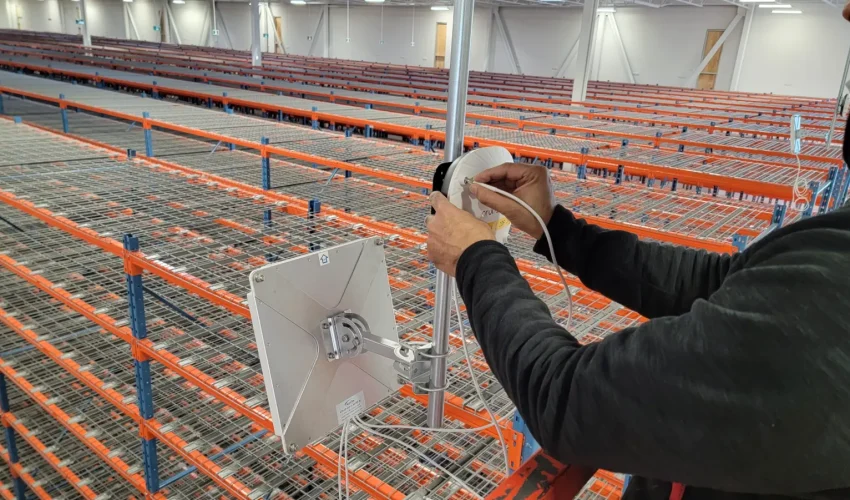
Warehouse Wi-Fi fails in two different ways. Some spots never get a usable signal, because steel racking and stock block it. Other spots have plenty of signal, yet scanners and forklift computers drop out as they move from one access point to the next. The fixes are different, so it pays to know which problem you have.
This guide explains the physics in plain terms, then turns it into design targets, settings and a test plan. The numbers come from vendor design guides and published field measurements, listed at the end.
Why warehouses are hard on Wi-Fi
An office is mostly air, drywall and people. A warehouse is a grid of steel filled with whatever is being stored, under a roof 10 m or more overhead. Each of those changes how radio travels.
- Steel racking reflects and blocks. Signal runs well down an aisle and badly across one. The racks behave like walls and the aisles like corridors.
- Stock absorbs. Water and dense goods soak up Wi-Fi energy. HPE Aruba’s warehouse design guide plans for about 3 dB of loss per metre through racks of dry goods and about 10 dB per metre through liquids.
- Height spreads the signal thin. A roof-mounted access point has to reach a scanner 10 m or more below it, past the top of the racks.
- The building changes every day. Racks fill and empty, pallets move, dock doors open and forklifts pass. A survey done in an empty building describes a building you will never operate.
The five kinds of dead zone
Most warehouse dead zones fall into one of five types. Each needs a different fix, so naming them is the first step.
1. Rack shadows
The access point sits over one aisle and the signal has to cross full racks to reach the next. Coverage looks fine under the access point and falls apart two aisles over, often only once the racks fill up.
2. Height shadows
Office-style omni access points mounted high put a ring of signal near the roof and too little underneath. HPE Aruba recommends directional access points above about 15 m (50 ft). At a 25 m mounting height it measured about -47 dBm at the floor from a directional model against about -58 dBm from an omni, an 11 dB difference.
3. Edges: dock doors and trailers
Signal has to reach along the dock face and into steel trailers, with doors opening and closing all day. Coverage planned for the main floor rarely reaches the back of a loaded trailer.
4. Cold rooms
Insulated panels with metal skins block signal almost completely. A freezer or cooler needs its own access points inside.
5. One-way zones
The access point is louder than the scanner. Near the edge of a cell the device shows full bars, but the access point cannot decode its replies. Survey laptops miss this, because they only measure what they receive.
The fifth one deserves a closer look, because it is the dead zone people argue about. Access points can transmit far more power than a battery-powered handheld. Fortinet’s guidance is to set access point power to suit the least powerful client on the network. When the downlink is much stronger than the uplink, the device stays attached to a distant access point, retries pile up and the warehouse app times out, even though the screen shows a strong signal.
HPE Aruba’s warehouse guide notes that lowering access point power is usually unnecessary in large, high-ceiling sites, and that is true for coverage. The check that settles it is the uplink: look at how strongly each access point hears each device on the controller, not only at how strongly the device hears the access point.
Design rules that remove dead zones
Start with clear targets. These are the numbers a warehouse design should meet at the height where scanners are actually used.
| Measure | Target | Why |
|---|---|---|
| Strongest access point at device height | -65 dBm | HPE Aruba’s warehouse target. Voice handsets often ask for -67 dBm from two APs. |
| Second-best access point | -72 dBm | Gives every device somewhere to roam. Use -67 dBm where voice runs. |
| Signal-to-noise ratio | 25 dB | Keeps scanner and voice traffic clean. |
| 5 GHz channel width | 20 MHz | More channels to reuse, less interference between APs. |
| Lowest basic data rate | 12 Mbps | Beacons and management frames use less airtime. |
| Measured | Racks full | At scanner height, on the real routes. |

- Place access points by aisle, not by grid. Plan coverage along the aisles people and vehicles use. HPE Aruba’s examples space access points about 40 to 65 m apart along an aisle, depending on antenna type and height, and stagger them across neighbouring aisles. Add coverage at aisle ends and cross-aisles, where most roams happen.
- Match the antenna to the height. Omni access points work up to roughly 10 to 15 m. Above that, use directional models aimed down the aisles. Our guide to omni and directional antennas explains the patterns.
- Design for full racks and the worst product. Model racks as walls with real loss values for what you store, and check the plan at peak inventory, not on move-in day.
- Design for the weakest device at its working height. A scanner on a belt clip or a computer inside a forklift cab hears and transmits worse than a survey laptop held at chest height.
- Balance power with your clients. Keep access point power within reach of what your handhelds can send back, then confirm the uplink on the controller.
- Make 5 GHz the main band. 2.4 GHz passes through stock better, but North America has only three non-overlapping channels (1, 6 and 11), so in a big building the access points interfere with each other. Keep 2.4 GHz for devices that need it, on fewer radios.
- Trim the legacy data rates. Beacons go out at the lowest basic rate, so disabling the 1 to 11 Mbps rates and setting 12 Mbps as the minimum on 5 GHz saves airtime. Juniper Mist recommends 12 Mbps for most networks. It is not a roaming switch, though, because the device still decides when to move.
For counting access points by area and device load, see how many access points a building needs.
Why devices drop while moving
Roaming is the device’s decision. The network can suggest a move (that is what 802.11v does), but the scanner decides when to look, where to go and when to let go. Every roam has three steps:
- Notice. The signal drops below the device’s roam threshold.
- Find. The device scans for a better access point. Scanning every 5 GHz channel takes around half a second, and channels that share spectrum with radar (DFS) must be scanned by listening, waiting about one beacon interval, roughly 100 ms, on each.
- Move. The device joins the new access point and proves who it is again. A full 802.1X login can take 700 ms or more, though a fast local server may manage under 100 ms. Data stops during this step.
All three steps have to happen inside the overlap between two cells. That gives a simple rule, the roam window: time available = overlap distance ÷ travel speed.
A picker walking at about 1.4 m/s takes 4.3 seconds to cross a 6 m overlap. A forklift at 12 km/h takes 1.8 seconds. If the device waits for a low threshold before it starts looking, half of that window is gone before the roam even begins. Fast movers need more overlap, earlier roam thresholds and shorter roams.
Roam window calculator
Set the options to match your site. The result updates as you go and shows whether a roam fits inside the overlap, how long data stops during each roam, and what to fix first. It opens on a forklift crossing a network nobody has tuned.
Estimates use typical published values: about 20 ms per channel for an active scan, about 110 ms per DFS channel scanned by listening, about 700 ms for a full 802.1X login, about 30 ms for a key handshake and about 20 ms for an 802.11r handoff. Your devices will differ, so confirm with a walk test.
Settings that make roaming fast

- 802.11k (neighbour reports). The access point gives the device a short list of nearby access points and their channels, so it scans two or three channels instead of all of them.
- 802.11r (fast BSS transition). The device proves its identity once, and each later roam reuses keys derived from that first login. The key exchange rides along with the reassociation, so a roam takes tens of milliseconds instead of a full login.
- OKC or PMK caching. For 802.1X devices that cannot do 802.11r. Opportunistic key caching shares the login keys across the network. Plain PMK caching only helps when a device returns to an access point it has already used.
- 802.11v (BSS transition management). Lets the network suggest a better access point. The device can still ignore it.
- Older devices. Some older clients refuse to join a network that advertises 802.11r. Use your vendor’s mixed or adaptive mode, or a separate network for them, and pilot on your exact device and firmware mix first.
- Device roam threshold. Rugged Android devices let you set when roaming starts. A common baseline is coverage designed for -65 dBm with roaming starting around -70 dBm. Defaults are often much lower.
- One network segment for mobile devices. If a roam crosses into a different subnet, the device needs a new IP address, and a DHCP exchange adds hundreds of milliseconds. Keep scanners and voice devices on one VLAN across the floor.
- Fewer network names. Every network name sends its own beacons about ten times a second on every access point. Two or three networks per radio is plenty.
- Voice priority end to end. Turn on WMM on the wireless side and mark voice traffic on the wired network too.
DFS channels and Wi-Fi 6E
The 5 GHz channels from 52 to 144 share spectrum with radar. Before an access point uses one, it must listen for 60 seconds. If it detects radar while running, it must stop, move and disconnect its clients, and a new DFS channel needs its own 60-second check. Cisco’s advice for sites that see radar events is 20 MHz channels and avoiding DFS. Because devices also scan DFS channels slowly, many designers keep them out of roaming-critical zones such as pick aisles with voice or robot routes, and use them for extra capacity elsewhere.
Wi-Fi 6E adds the 6 GHz band, which has no radar checks and many more clean channels. Newer rugged devices support it, including Zebra’s TC53 and TC58 and the MC9400. Most warehouses will run mixed fleets for years, so the 5 GHz design still has to stand on its own, and 6 GHz cells come out slightly smaller than 5 GHz cells.
Freezers, docks and forklifts
Freezers and coolers
Put the access points inside the cold room. Choose models rated for the temperature, as many outdoor-rated access points are, or use a heated enclosure. Heated enclosures can run the access point and the heater from a single PoE cable, so no electrical outlet is needed in the freezer. Watch for condensation where cable and equipment cross between warm and cold areas, and seal every penetration through the insulated panels.
Dock doors and trailers
Aim coverage along the dock face and into the trailers, and test with a loaded trailer at the door. HPE Aruba’s examples place about one access point every 50 m along perimeters and loading areas.
Forklifts and vehicle computers
Mount vehicle antennas high and clear of the metal cab and mast, and test at working speed. A forklift needs roughly two to three times the overlap of a walking picker for the same roam.
The cabling behind the access points
High-mounted access points mean long runs and work from lifts, so the cabling plan matters as much as the radio plan. Keep every run within the 100 m channel limit, which in large buildings means network closets out on the floor. TIA’s guidelines for access points recommend Cat6A, with two cables to each location (see Cat6 vs Cat6A). Budget PoE for 802.3bt access points and heated enclosures with our PoE power calculator, and support the runs properly in cable tray. Our warehouse cabling page covers the rest.
Test it like a picker

- Predict with real numbers. Model the racks with loss values for your actual stock, at full inventory.
- Survey at the planned height. Mount a test access point at the real height with the real antenna, and measure at scanner height in the aisles.
- Validate with your own devices. Walk and drive the real routes with your scanners and vehicle computers, carrying live traffic such as a continuous ping or a voice call, at working speed.
- Read the roams. On the controller, check roam times, failed roams, retries and how strongly each access point hears each device.
- Check the problem paths. Aisle ends, cross-aisles, dock to staging and freezer doors.
- Test again after changes. Racking moves, peak season and new device models all change the result.
More on survey types in our warehouse Wi-Fi survey guide.
Questions
Why does my scanner lose Wi-Fi in certain aisles?
Usually one of three things: full racks between the access point and that aisle, an omni access point mounted too high to reach the floor, or a one-way zone where the scanner hears the access point but the access point cannot hear the scanner. Measure at scanner height with the racks full, and check how strongly each access point hears the device.
What signal strength do warehouse scanners need?
Design for about -65 dBm from the strongest access point at device height, a second access point at -72 dBm or better, and a signal-to-noise ratio of 25 dB. Voice devices usually ask for about -67 dBm from two access points.
Should warehouse access points go on the ceiling?
Usually yes, above the top of the racks and aimed down the aisles. Omni access points work up to roughly 10 to 15 m. Above about 15 m, directional access points put much more signal on the floor.
Is 2.4 GHz better in a warehouse because it goes further?
It does pass through stock better, but North America has only three non-overlapping 2.4 GHz channels, so in a large building the access points interfere with each other. Use 5 GHz as the main band and keep 2.4 GHz for devices that need it.
Should I turn on 802.11r for scanners?
Yes for devices that support it, especially with 802.1X logins, because it cuts the roam to under 50 ms. Some older devices will not join a network that advertises 802.11r, so test first and use a mixed mode or a separate network for them.
Why do scanners stick to a far access point?
The device, not the network, decides when to roam. If its roam threshold is set low, or the far access point is transmitting loudly, it holds on. Set an earlier roam threshold, balance access point power and turn on 802.11k and 802.11v.
Do DFS channels cause Wi-Fi dropouts?
They can. If an access point detects radar it must leave the channel, and a new DFS channel needs a 60-second check before use. Devices also scan DFS channels slowly. Many designers keep DFS out of roaming-critical areas.
How many access points does a warehouse need?
It depends on aisle layout, rack height, stock and devices more than floor area. HPE Aruba’s examples space access points about 40 to 65 m apart along each aisle. A survey with the racks full sets the real number.
Does Wi-Fi work inside a freezer?
Yes, with access points inside the cold room that are rated for the temperature or housed in heated enclosures. Insulated walls block signal from outside, so coverage from the main floor will not reach in.
Will Wi-Fi 6E fix warehouse roaming?
It helps by adding clean channels with no radar checks, and newer rugged devices support it. Roaming still depends on overlap, roam thresholds and fast-roaming settings, so the same design rules apply.
Fixing Wi-Fi in a GTA warehouse?
Cablify plans and installs warehouse Wi-Fi across Toronto and the GTA, from site surveys to access points at height, Cat6A to every access point and cold room installs.
Ask for a free site assessmentRelated guides
- Warehouse Wi-Fi surveysPredictive, passive and active surveys for industrial sites.
- Access point installationMounting, cabling and setup for business Wi-Fi.
- Warehouse cablingData cabling for warehouses and industrial buildings.
- Common warehouse Wi-Fi problemsA quick list of what goes wrong on the floor.