

Why Is My 1 Gbps Internet Only Getting 200–300 Mbps Over Ethernet?
You’re paying for a 1 Gbps internet plan, but every wired speed test stubbornly stays around 200–300 Mbps. On paper everything looks “gigabit,” yet the numbers don’t match what you expected. In almost every case, that gap comes from a bottleneck somewhere between your ISP modem, router, cabling, and devices—not from a single “slow internet” problem.
At Cablify, we troubleshoot exactly these kinds of issues in offices and commercial spaces across the GTA, and the same few culprits show up again and again. This guide walks you through all of them, step by step.
What does “1 Gbps internet” actually mean?
A 1 Gbps plan means your connection to the ISP is capable of up to 1 gigabit per second under ideal conditions, not that you’ll see 1000 Mbps in every test. Real‑world overhead from networking protocols and test tools means the maximum you’ll usually see on a clean wired test is around 930–950 Mbps.
When you’re consistently stuck at 200–300 Mbps over Ethernet, there is almost always a specific limiter in your local setup: a 100 Mbps port, an old router, a bad cable, or a misconfigured device. Fixing that bottleneck is the key to unlocking the speeds you’re paying for.
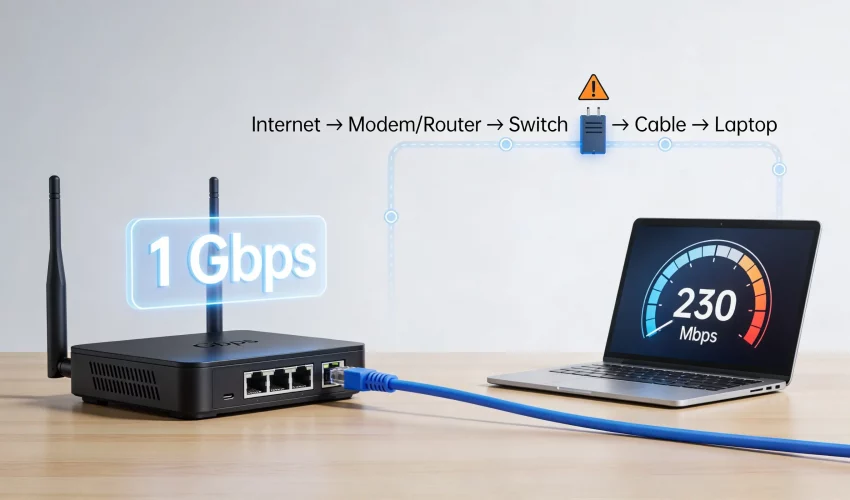
The full path your data travels
From the internet to your laptop screen, your traffic passes through several hops:
- ISP modem or modem/router gateway
- Your router and/or firewall
- Any switches in between
- Patch panel and in‑wall cabling (if present)
- Patch cable from wall or switch to your device
- Network adapter (NIC) inside your laptop or PC
If any piece in that chain negotiates at 100 Mbps, is CPU‑limited, or is miswired, the entire path slows down to that level. That’s why you can have a “gigabit plan” and still see only a fraction of the speed on a wired test.
First check: is your Ethernet link actually running at 1 Gbps?
Before changing hardware, confirm that your device is really connected at 1 Gbps, not 100 Mbps.
How to check link speed
- Windows:
- macOS:
If the link shows 100 Mbps, your maximum real throughput will be under 100 Mbps on a perfect test. If you’re seeing 200–300 Mbps with a 1 Gbps link, the limiter is likely CPU, router features (like QoS), or congestion rather than the physical link speed alone.
Why your link might drop to 100 Mbps
Common causes of a 100 Mbps link when you expected gigabit:
- Old or low‑quality Cat5 patch cords that don’t meet Cat5e or Cat6 Cabling performance.
- Damaged cable with kinks, crushing, or broken pairs.
- Terminations that only connect 2 pairs instead of all 4 (old 10/100 wiring practices).
- Cheap switches or routers with 10/100 ports mixed in, where your device happens to be plugged into a 100 Mbps port.
If you see 100 Mbps instead of 1 Gbps, swap the patch cable and port first; this simple step fixes a surprising percentage of “slow gigabit” cases.
Cables and connectors: the silent speed killers
Your Ethernet cable and its terminations are part of the “physical highway” for your data. If that highway is built poorly, you’ll hit traffic—even on a fast plan.
Cable category, length, and quality
For wired gigabit:
- Cat5e is the minimum for 1 Gbps up to 100 m.
- Cat6 and Cat6a are recommended in modern offices, especially for higher PoE loads and future multi‑gig (2.5/5/10 Gbps) upgrades.
Issues that can reduce performance even when the link speed says 1 Gbps:
- Very long runs near the 100 m limit, especially with marginal cable quality.
- Tight bends and cable crushed under furniture or trapped in door frames.
- Running data cables parallel and very close to electrical circuits, causing interference and error rates to climb.
Frequent errors mean more retransmissions, which can drag a line that negotiates at 1 Gbps down into the 200–300 Mbps range in real‑world tests.
Patch cords vs in‑wall cabling
In many offices we visit, the in‑wall Cat6 or Cat6a cabling is fine—but the short patch cords at desks are cheap, old, or physically damaged. Those last few metres are often where gigabit performance is lost.
Whenever you troubleshoot, start with a known‑good factory‑made Cat5e or Cat6 patch cord directly between your router and laptop. If speeds jump, the problem was in your previous patch lead or downstream cabling.
Router, modem, and switch bottlenecks
Even with perfect cabling, your router, modem, or switch can be the limiting factor.
100 Mbps ports and older hardware
Some devices marketed years ago as “fast” or “high‑speed” have limitations like:
- WAN port limited to 100 Mbps.
- Only one or two gigabit LAN ports, with the rest at 10/100.
- Shared internal bandwidth that prevents all ports from delivering full gigabit simultaneously.
If your laptop is connected to a 100 Mbps LAN port, it doesn’t matter that your plan is 1 Gbps—you’ll never exceed that port’s capability.
CPU limits, NAT, and QoS/SQM
Modern routers pack in features such as:
- QoS (Quality of Service) and Smart Queue Management
- Deep packet inspection and content filtering
- Advanced firewall and VPN features
On weaker or older routers, these features can significantly cap throughput. It’s common to see a gigabit plan drop into the 200–400 Mbps range when heavy QoS or Smart Queue Management is enabled.
A good test is to temporarily disable:
- QoS / Bandwidth control / Smart Queue
- Parental controls and content filters
- “Gaming accelerator” or similar traffic‑shaping options
Then run your wired speed test again. If speeds jump from 200–300 Mbps closer to 800–900 Mbps, your router’s CPU or feature set is the bottleneck, not your ISP link.
Double‑NAT and ISP gateways
Many setups use both:
- An ISP‑provided modem/router combo, and
- A separate consumer router behind it
In that case, traffic is being processed twice (double‑NAT). Each device may run its own firewall, QoS, and Wi‑Fi features, which adds latency and can reduce peak throughput.
To diagnose this, connect a laptop directly to the ISP gateway (bypassing your own router), use a short Cat5e/Cat6 patch cord, and test again. If speeds are much higher there, your own router or internal network is the limiting piece.
Your device can be the bottleneck
Even if the network side is perfect, your computer or laptop might not be.
Network adapter and settings
Potential limitations include:
- Older PCs with 10/100‑only Ethernet ports.
- USB 2.0 Ethernet adapters that physically cannot handle full gigabit.
- Outdated network drivers causing poor performance or negotiation issues.
- Speed/duplex settings forced to 100 Mbps or half‑duplex instead of “Auto Negotiation” or 1 Gbps full duplex.
Updating the NIC driver, resetting adapter settings to default, and ensuring a 1.0 Gbps full‑duplex link are easy, low‑risk steps that can restore lost performance.
CPU load, background apps, and security software
Your device also has to process traffic:
- Heavy CPU load from other apps can limit what your speed test tool can handle.
- Aggressive antivirus, endpoint security, and VPN clients all inspect or encrypt traffic, which can cut into maximum throughput.
When testing, close large downloads and sync tools, temporarily pause non‑essential apps, and if possible, test once without a VPN to see the “raw” potential of your connection.
Network congestion and testing mistakes
Sometimes the line is fine, but the way you’re testing—or who else is using the network—distorts the result.
Other users and devices
On a shared connection, if:
- Someone is streaming 4K video
- Cloud backups are running
- Multiple users are downloading large files
your test will only see the portion of bandwidth left at that moment. On a busy office network, this can easily reduce your visible speed from 900 Mbps down to 200–300 Mbps during peak use.
Bad test method
Common testing mistakes include:
- Running “gigabit” tests over Wi‑Fi instead of Ethernet, then assuming the ISP or cabling is slow if Wi‑Fi caps lower.
- Using a single speed test server which might be congested or geographically distant.
- Testing through a VPN server that is slower than your local line.
For accurate diagnosis, always:
- Test over wired Ethernet.
- Try multiple speed test servers.
- Run tests at different times of day.
Step‑by‑step checklist to fix “1 Gbps but only 200–300 Mbps”
Use this flow before buying new gear.
- Test at the router with a known‑good cable
- Disable QoS/SQM and heavy features
- Try another port and another patch lead
- Move the cable to a different LAN port on the router.
- Swap in a different factory‑made Cat5e/Cat6 patch cord.
- Check if the link speed and test results improve.
- Bypass extra hardware
- If there’s a switch between your router and device, temporarily plug your device straight into the router.
- If you have your own router behind an ISP gateway, test directly from the ISP device.
- Check your device’s NIC and drivers
- Test with a second device
- Run the same test from another laptop or PC on the same cable and port.
- If one device gets near‑gigabit speeds and another stays at 200–300 Mbps, the slow device is likely the issue.
- Talk to your ISP—with data
- If multiple wired devices, connected directly to the ISP gateway with known‑good cables, never exceed ~300 Mbps despite showing 1 Gbps link speeds, share your test results with the ISP.
- Ask them to verify provisioning and check for congestion or profile limits on your line.
When to call a structured cabling professional
If your testing points to physical cabling issues, it’s often faster and cheaper to bring in a structured cabling specialist than to keep guessing. Indicators you should call someone like Cablify include:
- Old, unlabeled Cat5 or questionable Cat5e cabling inside walls.
- Frequent drops between 1 Gbps and 100 Mbps, especially under load or during warmer parts of the day, suggesting marginal cable or terminations.
- Mixed cable categories, mystery patch panels, or ad‑hoc wiring done over many years in the same building.
In many GTA offices, we’ve restored “lost” performance simply by replacing a few poor‑quality patch cords, re‑terminating patch panels correctly, and upgrading older Cat5 runs to Cat6 or Cat6a. The result is a network that can actually deliver the gigabit speeds you’re paying for—often without touching your ISP plan at all.
FAQ: quick answers about gigabit plans and slow Ethernet
Is 200–300 Mbps normal on a 1 Gbps plan?
Over Ethernet, a properly configured gigabit connection should usually test in the 800–950 Mbps range on a good server. If you’re stuck around 200–300 Mbps consistently, something in your local setup is limiting performance.
Can Cat5e handle 1 Gbps?
Yes, Cat5e is rated for 1 Gbps up to 100 metres, but older or low‑quality runs and poor terminations can cause negotiation problems and errors that reduce effective throughput.
Why is my Ethernet slower than Wi‑Fi?
Often the wired path is limited by a 100 Mbps port, old router, or bad cable, while your Wi‑Fi device connects through newer hardware with better radios. Wi‑Fi tests and Ethernet tests can take completely different routes inside the same network.
Do I need Cat6 or Cat6a for 1 Gbps?
For pure 1 Gbps, Cat5e is technically enough. However, Cat6 or Cat6a is recommended in new installations for better noise margins, higher PoE loads, and future 2.5/5/10 Gbps upgrades—especially in offices and commercial spaces.
Will buying a new router fix my slow 1 Gbps line?
A new router can help if your current one has 100 Mbps ports or a weak CPU, but it won’t fix bad cabling or device limitations. Always work through a structured checklist before spending money on new hardware.