
TCP/IP Networking:
The Complete Guide to How
the Internet Actually Works
TCP/IP is the language every device on the internet speaks. Whether you’re designing a network, troubleshooting connectivity, or just want to understand what happens when you load a webpage — this is the guide.
TCP/IP isn’t a single protocol — it’s a suite of protocols that together define how every device on the internet sends, receives, and routes data. Developed in the 1970s by Vint Cerf and Bob Kahn for ARPANET, it has since become the universal language of global communications. From loading a webpage to sending an email, from a video call to a cloud backup — every one of these actions depends on TCP/IP working correctly at multiple layers simultaneously.
This guide covers everything: the four-layer TCP/IP model and what happens at each layer, IP addressing and how devices find each other, the difference between TCP and UDP, how DNS translates names to addresses, how DHCP assigns addresses automatically, the critical differences between IPv4 and IPv6, TCP/IP port numbers, subnetting fundamentals, and the security principles that protect it all. Whether you’re a network engineer, an IT professional managing a GTA office network, or someone building foundational knowledge — start here.
What Is TCP/IP? — The Foundation of All Modern Networking
TCP/IP stands for Transmission Control Protocol / Internet Protocol. It is not a single protocol but a suite — a collection of interconnected protocols that together govern how data is packaged, addressed, transmitted, routed, and received across any network. TCP and IP are the two foundational protocols in this suite, but the full TCP/IP stack includes dozens of supporting protocols including DNS, DHCP, UDP, HTTP, FTP, SMTP, ICMP, ARP, and many others.
The elegance of TCP/IP is its layered design. Each layer handles a specific job and communicates with the layers immediately above and below it through well-defined interfaces. This means a change or improvement at one layer — say, a new physical transmission technology — doesn’t require rewriting the protocols at other layers. It’s what allowed TCP/IP to remain the foundation of the internet for 50+ years while the underlying technologies changed beyond recognition.
The Four-Layer TCP/IP Model — How Each Layer Works
The TCP/IP protocol stack is organized into four layers, each with a clearly defined role. Data flows down the stack when sending (from application to wire) and up the stack when receiving (from wire to application). At each layer, headers are added during transmission (encapsulation) and removed during reception (decapsulation).
Application Layer — Where User Data Lives
The Application layer is where network applications and their protocols operate. This is the only layer users directly interact with. Every application that communicates over a network — a web browser, email client, file transfer tool, or remote terminal — operates at this layer. The Application layer defines how applications format their requests and responses, but it relies entirely on the layers below to actually get those requests delivered.
Key protocols at the Application layer:
| Protocol | Full Name | Port | Purpose |
|---|---|---|---|
| HTTP/HTTPS | HyperText Transfer Protocol (Secure) | 80 / 443 | Web browsing — every webpage you load |
| FTP | File Transfer Protocol | 20 / 21 | Uploading and downloading files between hosts |
| SMTP | Simple Mail Transfer Protocol | 25 / 587 | Sending email between mail servers |
| IMAP / POP3 | Internet/Post Office Message Access | 143 / 110 | Retrieving email from a mail server |
| DNS | Domain Name System | 53 | Translating domain names to IP addresses |
| SSH | Secure Shell | 22 | Encrypted remote terminal access |
| SNMP | Simple Network Management Protocol | 161 / 162 | Monitoring and managing network devices |
| DHCP | Dynamic Host Configuration Protocol | 67 / 68 | Automatically assigning IP addresses |
Transport Layer — TCP vs UDP: Reliability vs Speed
The Transport layer is responsible for end-to-end communication between applications on different hosts. It takes the data from the Application layer and breaks it into segments (TCP) or datagrams (UDP), adding port numbers that identify which application the data belongs to. This is where the critical choice between TCP (reliable) and UDP (fast) is made.
| Feature | TCP — Transmission Control Protocol | UDP — User Datagram Protocol |
|---|---|---|
| Connection | Connection-oriented (3-way handshake) | Connectionless — fire and forget |
| Reliability | Guaranteed delivery with acknowledgements | No guarantee — packets may be lost |
| Order | Data arrives in the correct sequence | No ordering — may arrive out of sequence |
| Speed | Slower — overhead of acknowledgements | Faster — minimal overhead |
| Error checking | Full error detection and retransmission | Basic checksum only, no retransmission |
| Flow control | Yes — prevents sender overwhelming receiver | No flow control |
| Use cases | Web (HTTP), email, file transfer, SSH | DNS, VoIP, video streaming, gaming, DHCP |
| Header size | 20–60 bytes | 8 bytes |
Before any data flows over TCP, the two hosts establish a connection through a three-step process: (1) SYN — the client sends a synchronization packet to the server; (2) SYN-ACK — the server acknowledges and responds with its own synchronization; (3) ACK — the client acknowledges the server’s response. Only then does data transfer begin. This process adds latency but guarantees both sides are ready and synchronized before transmission. When TCP connections close, a four-way FIN/ACK exchange ensures both sides agree the connection is terminated.
Internet Layer — Routing Packets Across Networks
The Internet layer is the heart of TCP/IP — this is where IP (Internet Protocol) operates. Its job is to take the segments from the Transport layer, encapsulate them into packets, add source and destination IP addresses, and route them across networks. The Internet layer is connectionless — each packet is an independent unit that may travel a different path to reach the same destination.
Key protocols at the Internet layer:
- IP (Internet Protocol) — Provides logical addressing (IP addresses) and routing. The primary protocol of this layer.
- ICMP (Internet Control Message Protocol) — Used for error reporting and network diagnostics. The backbone of the
pingandtraceroutecommands. - ARP (Address Resolution Protocol) — Maps IP addresses to MAC (hardware) addresses on the same local network. Essential for actual packet delivery within a subnet.
- IGMP (Internet Group Management Protocol) — Manages multicast group memberships for one-to-many streaming.
- Routing protocols (OSPF, BGP, RIP) — Used by routers to exchange routing table information and determine the best paths through the network.
When a packet reaches a router, the router examines the destination IP address, consults its routing table, and forwards the packet out the appropriate interface toward its destination. This process repeats at every router (“hop”) along the path until the packet reaches its destination network.
Link Layer (Network Access Layer) — Physical Transmission
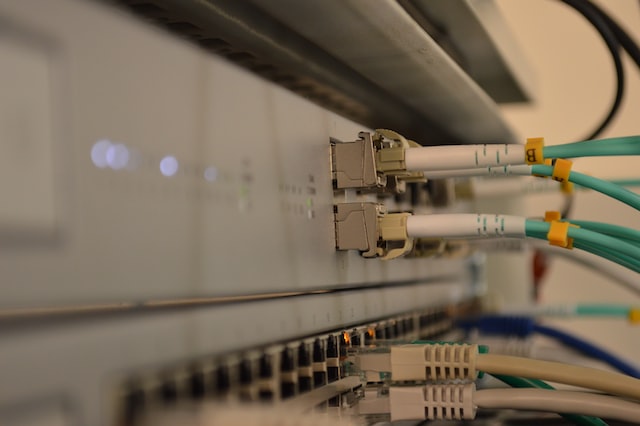
The Link layer handles how data is physically transmitted over the local network medium — whether that’s a Cat6A Ethernet cable, a Wi-Fi radio signal, a fiber optic strand, or a DSL line. This layer includes both the data link functions (framing data, MAC addressing, error detection on the local segment) and the physical functions (electrical signals, light pulses, radio waves).
At this layer, packets from the Internet layer are encapsulated into frames — units that include the source and destination MAC addresses (unique hardware identifiers burned into every network interface card). Unlike IP addresses which are logical and can change, MAC addresses are permanently assigned to the hardware.
Technologies at the Link layer: Ethernet (IEEE 802.3), Wi-Fi (IEEE 802.11), fiber optic (via Ethernet framing), DSL, cable modem, cellular data (LTE/5G).
How Data Actually Travels — The Encapsulation Journey
Understanding encapsulation — how each layer wraps the data from the layer above — is key to understanding how TCP/IP actually works. Here’s what happens when you load a webpage:
TCP/IP Port Numbers — The Address Within an Address
An IP address identifies a device on the network. A port number identifies a specific application or service running on that device. Together, an IP address and port number form a socket — the complete address for a specific service on a specific machine. Port numbers range from 0 to 65,535 and are divided into three ranges:
| Range | Name | Assignment | Examples |
|---|---|---|---|
| 0 – 1,023 | Well-Known Ports | Assigned by IANA, require root/admin | HTTP (80), HTTPS (443), SSH (22), DNS (53), FTP (21) |
| 1,024 – 49,151 | Registered Ports | Registered by vendors, commonly used | MySQL (3306), RDP (3389), PostgreSQL (5432) |
| 49,152 – 65,535 | Dynamic/Ephemeral Ports | Assigned automatically to client connections | Temporary ports used by browsers, apps connecting outbound |
FTP: 20/21 · SSH: 22 · Telnet: 23 · SMTP: 25 · DNS: 53 · HTTP: 80 · POP3: 110 · IMAP: 143 · HTTPS: 443 · SMB: 445 · RDP: 3389 · MySQL: 3306 · SNMP: 161 · DHCP: 67/68 · NTP: 123 · LDAP: 389 · BGP: 179 · Syslog: 514. Memorising the well-known ports is fundamental for firewalls, network security, and troubleshooting.
IP Addressing — IPv4 Explained in Full
An IPv4 address is a 32-bit number, written as four decimal octets separated by dots — for example, 192.168.1.100. Each octet can range from 0 to 255. The 32-bit structure means IPv4 supports a theoretical maximum of 2³² = 4,294,967,296 addresses — a number that seemed enormous in 1981 and is now exhausted.
IPv4 addresses are divided into two parts: the network portion (which identifies which network the device is on) and the host portion (which identifies the specific device within that network). The subnet mask — also written in dotted decimal or as a CIDR prefix — defines where the split is.
| Address Class | Range | Default Mask | Hosts per Network | Typical Use |
|---|---|---|---|---|
| Class A | 1.0.0.0 – 126.255.255.255 | /8 (255.0.0.0) | 16,777,214 | Large organizations, ISPs |
| Class B | 128.0.0.0 – 191.255.255.255 | /16 (255.255.0.0) | 65,534 | Medium organizations |
| Class C | 192.0.0.0 – 223.255.255.255 | /24 (255.255.255.0) | 254 | Small networks, home/office |
| Class D | 224.0.0.0 – 239.255.255.255 | N/A | N/A | Multicast (IPTV, routing protocols) |
| Class E | 240.0.0.0 – 255.255.255.255 | N/A | N/A | Reserved / experimental |
Private IP Address Ranges
RFC 1918 defines three blocks of IP addresses reserved for private networks — these addresses are not routable on the public internet and are used within organisations, homes, and office networks. NAT (Network Address Translation) translates between private and public addresses at the router.
| Private Range | CIDR | Addresses Available | Typical Use |
|---|---|---|---|
| 10.0.0.0 – 10.255.255.255 | 10.0.0.0/8 | 16,777,216 | Large enterprise networks |
| 172.16.0.0 – 172.31.255.255 | 172.16.0.0/12 | 1,048,576 | Medium enterprise networks |
| 192.168.0.0 – 192.168.255.255 | 192.168.0.0/16 | 65,536 | Home networks, small offices |
Subnetting and CIDR — Dividing Networks Efficiently
Subnetting is the practice of dividing a larger network into smaller sub-networks (subnets). This improves performance by reducing broadcast traffic, improves security by isolating departments or functions, and makes more efficient use of IP address space. CIDR (Classless Inter-Domain Routing) notation — the /number after an IP address — replaced the rigid class system in 1993 and allows much more flexible network division.
| CIDR | Subnet Mask | Usable Hosts | Network Bits | Common Use |
|---|---|---|---|---|
| /8 | 255.0.0.0 | 16,777,214 | 8 | Large ISP allocations |
| /16 | 255.255.0.0 | 65,534 | 16 | University, large campus |
| /24 | 255.255.255.0 | 254 | 24 | Typical office floor / VLAN |
| /25 | 255.255.255.128 | 126 | 25 | Splitting a /24 in half |
| /26 | 255.255.255.192 | 62 | 26 | Small department segment |
| /28 | 255.255.255.240 | 14 | 28 | Small equipment subnet |
| /30 | 255.255.255.252 | 2 | 30 | Point-to-point router links |
| /32 | 255.255.255.255 | 1 host | 32 | Loopback / host route |
For any subnet: Usable hosts = 2ⁿ − 2, where n = number of host bits. Subtract 2 because the first address (network address) and last address (broadcast address) cannot be assigned to hosts. For a /24: 8 host bits → 2⁸ − 2 = 254 usable hosts. For a /26: 6 host bits → 2⁶ − 2 = 62 usable hosts.
IPv4 vs IPv6 — The Complete Comparison
IPv6 was designed to replace IPv4, primarily because IPv4’s 4.3 billion addresses were exhausted by IANA in 2011. But IPv6 is not simply “IPv4 with more addresses” — it introduces fundamental changes to how addressing, routing, and auto-configuration work.
An IPv6 address is 128 bits long, written as eight groups of four hexadecimal digits separated by colons: 2001:0db8:85a3:0000:0000:8a2e:0370:7334. Leading zeros within a group can be omitted, and consecutive groups of all zeros can be replaced with :: (once per address). This gives IPv6 340 undecillion (3.4 × 10³⁸) addresses — enough for every atom on Earth to have its own address many times over.
| Feature | IPv4 | IPv6 |
|---|---|---|
| Address length | 32 bits | 128 bits |
| Address format | Dotted decimal: 192.168.1.1 | Hex colon: 2001:db8::1 |
| Total addresses | ~4.3 billion | 340 undecillion |
| Address space | Exhausted (2011) | Effectively unlimited |
| Header size | 20–60 bytes (variable) | 40 bytes (fixed) |
| NAT required | Yes — private to public | No — every device gets public address |
| Auto-configuration | Requires DHCP | SLAAC — self-configures without DHCP |
| IPSec | Optional | Built in (mandatory in original spec) |
| Broadcast | Yes | No — uses multicast instead |
| Fragmentation | By routers and hosts | By sending host only |
| Routing efficiency | Complex, NAT overhead | Simpler, more efficient routing tables |
| Checksum in header | Yes | No (handled by upper layers) |
As of 2026, IPv6 adoption globally exceeds 40% of internet traffic, with Canada among the leading adopters. Major ISPs including Rogers, Bell, and Telus now assign IPv6 addresses to business and residential customers. However, most enterprise networks still operate in dual-stack mode — running IPv4 and IPv6 simultaneously — because IPv4 will remain in widespread use for years to come due to the enormous installed base of equipment and software.
Essential TCP/IP Protocols — DNS, DHCP, ARP, ICMP, SNMP
DNS — Domain Name System
DNS is the internet’s phone book — it translates human-readable domain names (like www.cablify.ca) into IP addresses that routers can use to deliver packets. Without DNS, users would need to memorize IP addresses for every website they visit.
A DNS lookup follows a hierarchical chain: your device queries its local DNS resolver (usually provided by your ISP or set manually to 8.8.8.8 for Google DNS), which queries the root name servers, then the TLD name servers (.ca, .com, etc.), then the authoritative name server for the specific domain. The answer is cached at each step — with a TTL (Time to Live) determining how long it’s kept before a fresh lookup is needed.
A record — Maps domain to IPv4 address. AAAA record — Maps domain to IPv6 address. CNAME — Canonical name / alias (e.g., www → root domain). MX record — Mail server for the domain. TXT record — Text data (SPF, DKIM, domain verification). NS record — Identifies the authoritative name servers for the domain. PTR record — Reverse DNS lookup (IP to domain name).
DHCP — Dynamic Host Configuration Protocol
DHCP automatically assigns IP addresses and network configuration to devices when they join a network — eliminating the need for manual IP address management. When a device connects to a network, it broadcasts a DHCP Discover message; the DHCP server responds with an Offer containing an IP address; the client sends a Request to accept it; the server confirms with an Acknowledge. This four-step DORA process (Discover, Offer, Request, Acknowledge) happens within seconds and provides not just an IP address but also the subnet mask, default gateway, and DNS server addresses.
ARP — Address Resolution Protocol
ARP bridges the gap between IP addresses (Layer 3) and MAC addresses (Layer 2). When a device wants to send data to another device on the same subnet, it knows the destination IP address but needs the MAC address to create an Ethernet frame. ARP broadcasts a request — “Who has IP 192.168.1.50? Tell 192.168.1.10” — and the device with that IP responds with its MAC address. This mapping is cached in the device’s ARP table for efficiency.
ICMP — Internet Control Message Protocol
ICMP is the diagnostic protocol of IP networking. It carries error messages and operational information — not user data. The most familiar uses are:
- ping — Sends ICMP Echo Request packets and measures round-trip time to verify connectivity and latency
- traceroute / tracert — Maps the path packets take through the network by sending packets with incrementally increasing TTL values and recording each router that sends back an ICMP Time Exceeded message
- Destination Unreachable — Tells the sender that a packet couldn’t be delivered (and why)
- Path MTU Discovery — Discovers the maximum packet size that can travel a path without fragmentation
SNMP — Simple Network Management Protocol
SNMP is the standard for monitoring and managing network infrastructure — switches, routers, firewalls, access points, servers, and UPS units. It uses a manager/agent model: a central management system (the manager) polls devices (agents) for status information, and agents can send unsolicited traps to alert the manager of important events. Network monitoring tools like Zabbix, PRTG, Nagios, and SolarWinds all use SNMP as a primary data collection mechanism.
Modern TCP/IP Technologies — VPN, SDN, and What’s Next
VPN — Virtual Private Networks
A VPN creates an encrypted tunnel over the public internet, making remote devices appear as if they’re directly connected to a private network. For businesses with remote workers — a major reality across the GTA since 2020 — VPNs are essential infrastructure. The most common VPN protocols in enterprise environments are IPSec/IKEv2 (the most secure, natively supported on most OS platforms), OpenVPN (open source, highly configurable), and WireGuard (newer, extremely fast and efficient). SSL/TLS-based VPNs like those using OpenVPN or proprietary solutions operate at the Application layer, while IPSec operates at the Network layer.
SDN — Software-Defined Networking
SDN separates the control plane (decisions about where traffic goes) from the data plane (actually moving the traffic). In traditional networking, both live in the same device — a router decides and forwards simultaneously. SDN moves the control plane to a centralized software controller, giving network administrators unprecedented visibility and control over traffic flows. Changes that once required manually reconfiguring dozens of devices can be made from a single dashboard in seconds. Cisco ACI, VMware NSX, and OpenFlow are the dominant SDN platforms in enterprise deployments.
Network Function Virtualization (NFV) and Cloud Networking
NFV virtualises network functions — firewalls, load balancers, routers — as software running on standard servers rather than dedicated hardware. This underpins cloud networking platforms like AWS VPC, Azure Virtual Network, and Google Cloud Networking, where organizations now run significant portions of their TCP/IP infrastructure in the cloud rather than on-premise hardware.
TCP/IP Security — Vulnerabilities, Attacks, and Defences
TCP/IP was designed for reliability and interoperability, not security — the original ARPANET operated in a trusted academic environment where security wasn’t the primary concern. This has led to many well-known vulnerabilities that administrators must understand and defend against.
| Attack | Layer Targeted | How It Works | Defence |
|---|---|---|---|
| IP Spoofing | Internet (IP) | Forging the source IP address in packets | Ingress/egress filtering, BCP38 |
| SYN Flood | Transport (TCP) | Overwhelming server with SYN packets without completing handshake | SYN cookies, rate limiting, firewall |
| ARP Spoofing | Link (ARP) | Broadcasting false ARP replies to poison ARP caches | Dynamic ARP Inspection (DAI), static ARP entries |
| DNS Spoofing | Application (DNS) | Injecting false DNS responses to redirect traffic | DNSSEC, encrypted DNS (DoH, DoT) |
| Man-in-the-Middle | Multiple layers | Intercepting traffic between two communicating parties | TLS/SSL, certificate pinning, VPN |
| DDoS | Multiple layers | Overwhelming bandwidth or service with traffic from many sources | DDoS scrubbing services, rate limiting, BGP blackholing |
| Port Scanning | Transport | Probing ports to discover running services and vulnerabilities | Firewall rules, fail2ban, IDS/IPS |
Common Questions — TCP/IP Explained
TCP/IP is the suite of communication protocols that governs how data is transmitted across the internet and most private networks. It defines how data is packaged, addressed, routed, and received between devices. Without TCP/IP, devices from different manufacturers running different operating systems could not communicate — it’s the universal language of modern networking.
IP (Internet Protocol) handles addressing and routing — it gives every device an address and determines the path packets take across networks. TCP (Transmission Control Protocol) handles reliable delivery — it ensures data arrives in order, without corruption, and retransmits anything that’s lost. IP gets the packet to the right destination; TCP ensures the data is delivered correctly once it gets there.
The OSI (Open Systems Interconnection) model is a theoretical 7-layer reference framework for understanding network communication. TCP/IP is the actual, practical implementation that the internet runs on — with 4 layers. TCP/IP’s Application layer covers OSI’s Application, Presentation, and Session layers (5, 6, 7). TCP/IP’s Link layer covers OSI’s Data Link and Physical layers (1, 2). OSI is useful for learning and troubleshooting; TCP/IP is what actually runs.
Use TCP when data integrity is critical and you can’t afford missing or corrupted data — web browsing (HTTP/HTTPS), file transfers (FTP, SFTP), email (SMTP, IMAP), database queries, and remote access (SSH). Use UDP when speed matters more than guaranteed delivery — DNS lookups (where retrying is fast), VoIP and video calls (where a dropped frame is better than a delayed one), live streaming, online gaming, and DHCP. Many modern applications use QUIC (Quick UDP Internet Connections) — Google’s protocol that adds reliability on top of UDP for better performance than TCP.
An IP address is a numerical label assigned to every device on a network, serving as its unique identifier for communication purposes. IPv4 addresses are 32-bit numbers written as four octets (e.g., 192.168.1.100). They consist of a network portion (which network the device is on) and a host portion (which device on that network). Routers use the network portion to route packets; the host portion identifies the specific device once the packet arrives on the local network.
NAT (Network Address Translation) allows multiple devices on a private network (using private IP addresses like 192.168.x.x) to share a single public IP address when communicating with the internet. Your office router typically has one public IP from your ISP, and NAT translates all internal requests to appear as if they come from that single public IP. NAT was introduced as a workaround for IPv4 address exhaustion and will become less necessary as IPv6 adoption gives every device its own public address.
1. You type “cablify.ca” in your browser. 2. Your OS checks its local DNS cache — if the answer is cached, done. 3. If not, a query goes to your configured DNS resolver (e.g., 8.8.8.8). 4. The resolver checks its cache. 5. If not cached, the resolver queries a root name server, which directs it to the .ca TLD servers. 6. The .ca TLD server directs it to Cablify’s authoritative name server. 7. The authoritative server returns the IP address. 8. The resolver caches it and returns it to your device. 9. Your browser connects to that IP address. The entire process typically takes 10–50ms.
“TCP/IP isn’t just a protocol — it’s the greatest engineering achievement of the 20th century that most people use every minute of every day without knowing it exists.”
— Vint Cerf, co-inventor of TCP/IP, often called the “Father of the Internet”
TCP/IP Quick Reference — Key Numbers and Facts
| Concept | Key Number / Fact | Why It Matters |
|---|---|---|
| IPv4 address space | 32 bits / 4.3 billion addresses | Exhausted — driving IPv6 adoption |
| IPv6 address space | 128 bits / 340 undecillion | Enough for every atom on Earth multiple times |
| TCP three-way handshake | SYN → SYN-ACK → ACK | Required before any TCP data transfer |
| Well-known port range | 0 – 1,023 | System/admin reserved, requires elevated privilege |
| Max TCP segment size | Default MSS ~1,460 bytes (on Ethernet) | Determined by MTU minus IP/TCP headers |
| Standard Ethernet MTU | 1,500 bytes | Maximum IP packet size on most networks |
| Loopback address (IPv4) | 127.0.0.1 | Always refers to the local device itself |
| Loopback address (IPv6) | ::1 | IPv6 equivalent of 127.0.0.1 |
| APIPA / link-local IPv4 | 169.254.x.x | Auto-assigned when DHCP fails |
| Link-local IPv6 | fe80::/10 | Auto-configured, not routable beyond local link |
| DNS default TTL | Commonly 3,600 seconds (1 hour) | How long DNS responses are cached |
| DHCP lease typical duration | 24 hours (varies by configuration) | How long an IP assignment is valid before renewal |
TCP/IP and Physical Network Infrastructure — Why It All Connects
TCP/IP operates above the physical layer — but the physical layer is what TCP/IP runs on. The quality and design of your network’s physical infrastructure directly determines the performance and reliability of every TCP/IP-dependent application your business runs.
For GTA businesses running on structured Cat6A cabling with properly designed MDF/IDF infrastructure, TCP/IP traffic flows predictably and at maximum throughput. For businesses on aging Cat5e with poor terminations and inadequate PoE budgets, TCP/IP performance degrades in ways that are often misdiagnosed as software or ISP problems — when the real cause is a physical layer failure three layers below where anyone thinks to look.
When troubleshooting network performance issues, experienced network engineers always start at Layer 1 (physical) and work up. A Cat6A cable with a bad termination causes packet loss at Layer 2, which triggers TCP retransmissions at Layer 4, which slows application performance at Layer 7 — a cascading effect that looks, from the user’s perspective, like “the internet is slow.” Understanding the TCP/IP model tells you exactly where in the stack to look.
Need Help with Your Network Infrastructure in Toronto or the GTA?
Cablify designs and installs the physical network infrastructure that your TCP/IP traffic runs on — structured cabling, fiber optic, server rooms, and wireless access point deployment across Toronto, Mississauga, Brampton, and the GTA.
Get a Free Network Assessment →
📞 647-846-1925 · info@cablify.ca · Mon–Sat 8am–8pm